Troubleshooting
Meccha Chameleon Troubleshooting: Install, Lobby, and Browser Checks
Troubleshoot Meccha Chameleon safely with Steam file verification, lobby checks, browser embed notes, and update-source guidance.
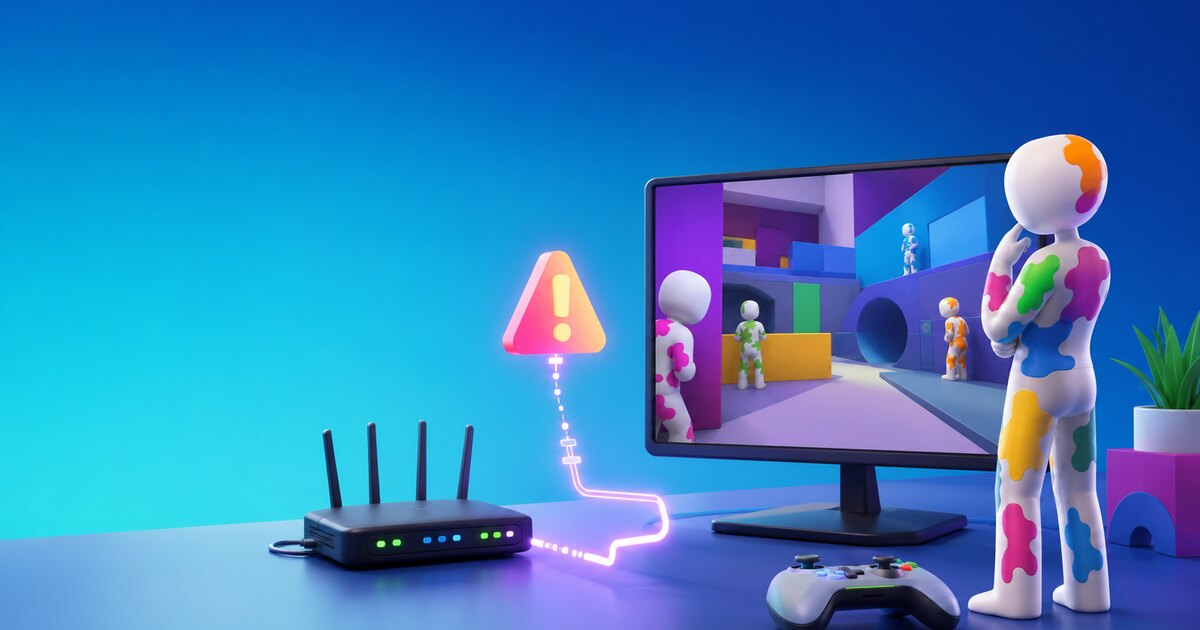
If the Steam install fails
Start with Steam's built-in tools before downloading anything elsewhere. Most install issues should be handled through the Steam client and official support paths.
- Restart Steam and confirm the game is fully updated.
- Verify installed files from the Steam library.
- Check available disk space and OS updates.
- Read recent Steam posts for a known patch issue.
If lobbies or rooms fail
Lobby problems can come from patch mismatch, Steam connectivity, local firewall rules, or temporary service issues. Do not assume a reinstall is the first fix.
- Confirm all players are on the same current build.
- Restart Steam and the game.
- Check firewall or VPN settings that may block multiplayer traffic.
- Use official community channels for outage reports.
If the homepage browser game does not load
The embedded browser game is served by a third-party provider. Browser privacy settings, ad blockers, or iframe restrictions can affect it without meaning Meccha Chameleon itself is broken.
- Open the fallback CrazyGames source link.
- Try a desktop browser with third-party frames allowed.
- Use Steam for the full Meccha Chameleon game.
Frequently asked questions
Should I download a patch from another site?
No. Use Steam updates and official developer posts. Third-party patch files are a security risk.
Why does the browser embed fail while Steam works?
They are different products and providers. The embed can fail because of browser or third-party iframe settings.